how do i remap keys in linux
intro
I’m going to show you how I used Keyd to remap my keyboard and fix some annoying issues and build my custome layout. i'll solve some problems i've encountered. but keep in mind you can use it as you want. it's really a great tool
problems i want to solve
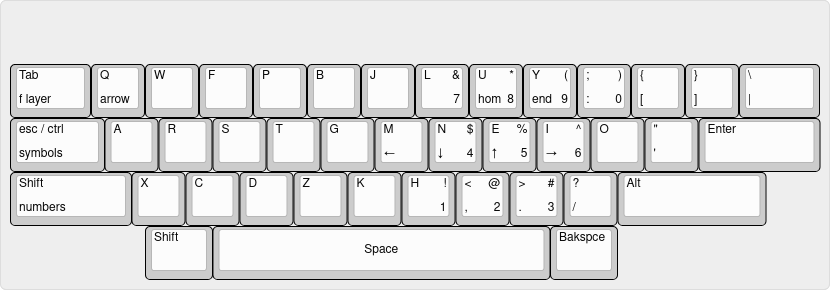
these are the things that i will use keyd to achieve:
- caps lock --> tap for escape / hold with any other key for control
- left shift --> extra super
- right shift an extra alt
- left alt --> shift
- right Alt --> Backspace
- q --> tap for q / hold with (hjkl) for arrow, the vim way!
- space :
- tap for space
- hold then tap left shift for numbers layer (while holding it you can tap caps lock to go to symbols layers)
- hold then tap caps lock for symbols layer
- hold then tap tab for f layer (f1, f2,...)
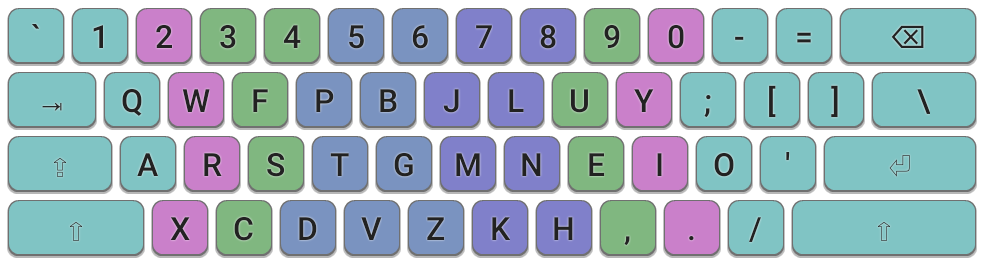
i'm currently using the colemake-dh layout, i like it so far.
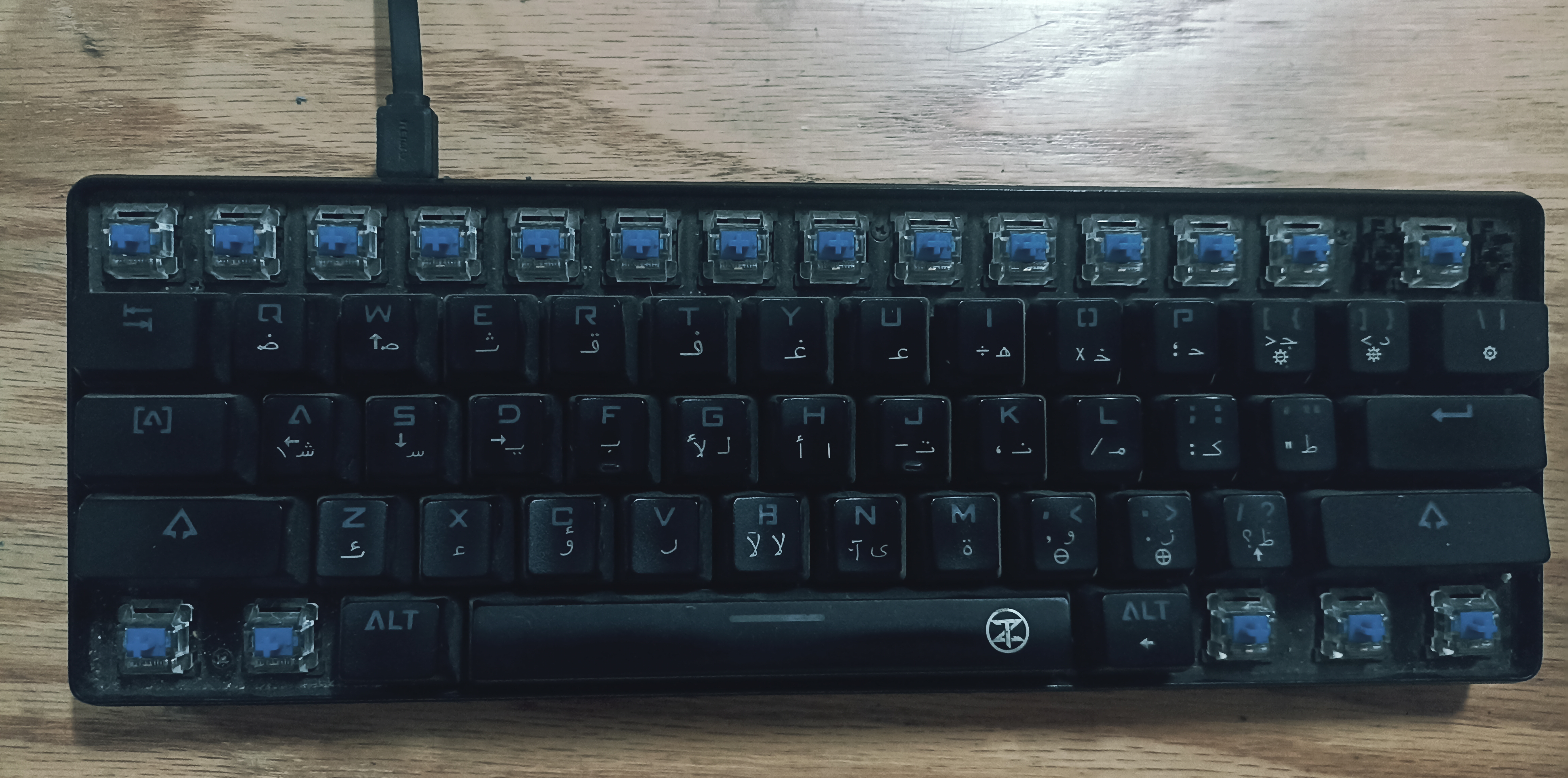
and this is my keyboard after some de-bloating (:
but.. what is keyd?
let me quickly explain what Keyd is. Keyd is a Linux tool that allows you to remap keys at the kernel level, which means your key mappings work system-wide, regardless of what desktop environment or window manager you’re using. It’s super powerful because it doesn't rely on software running in the background, so you get instant and consistent key remaps.
You configure Keyd through a simple configuration file in /etc/keyd/default.conf
how to install it
Installing Keyd is pretty straightforward. First, open a terminal and run the following commands:
# Arch :
sudo pacman -S keyd

# otherwise :
git clone https://github.com/rvaiya/keyd
cd keyd
make && sudo make install
Enable and start the Keyd service to make sure it runs on boot:
sudo systemctl enable keyd --now
Now that Keyd is installed, let’s go over how to configure it.
configuration
first you have to know the name of the keys you're remapping, use this command :
sudo keyd monitor
now you can go to the configurtion file which is typically located at this path : /etc/keyd/default.conf
You’ll need superuser permissions to edit it, so open it in your preferred text editor. For example:
sudo nvim /etc/keyd/default.conf
Here’s an example of what my configuration looks like to solve those problems I mentioned earlier:
[ids]

*

[main]

capslock = overload(control, esc)

space = overload(shift_vim,space)

leftalt =leftshift

q = overload(nav, q)

rightalt = backspace

leftshift = leftmeta

rightshift = leftalt

[shift_vim]

capslock= swap(symbol_mode)

leftshift = swap(numbers_mode)

tab = swap(functions_mode)

[nav]
# arrow keys
h = left
j = down
k = up
l = right
# end and other stuff
o = end
i = home

[numbers_mode]
m = 1
, = 2
. = 3
j = 4
k = 5
l = 6
u = 7
i = 8
o = 9
p = 0

capslock= swap(symbol_mode)
tab = swap(functions_mode)

[symbol_mode]
m = !
, = @
. =#
j = $
k = %
l = ^
u = &
i = *
o = (
p = )
/ = =
' = -
h = _
g = ~
f = +

leftshift = swap(numbers_mode)
tab = swap(functions_mode)

[functions_mode]
m = f1
, = f2
. = f3
j = f4
k = f5
l = f6
u = f7
i = f8
o = f9
p = f10
h = f11
' = f12

capslock= swap(symbol_mode)
leftshift = swap(numbers_mode)
Once you've added your key mappings:
save the file and exit the editor.
:wq
Then, reload Keyd to apply the changes:
sudo keyd reload
if you want to do more than what i did you can go to the man page and learn more about it:
man keyd
or you can see the examples configs on their main repo
bye (: